


Introduction to the Feature
The Course Evaluation feature allows mentors and evaluators to review and score assignments or submissions completed by students within AcceleratorApp courses. This tool provides a structured way to assess student progress, give direct feedback, and validate learning milestones without leaving the platform.
By centralizing evaluations through automated notifications, mentors and evaluators can quickly identify pending reviews, submit standardized scores, and revisit past evaluations whenever updates are needed.
This guide is designed for Mentor and Evaluator user roles. Course evaluations can only be accessed once a student submits an assignment and you are assigned to review it.
Where to Find Course Evaluations
Currently, the only way to access pending or completed course evaluations is through your notifications in AcceleratorApp.
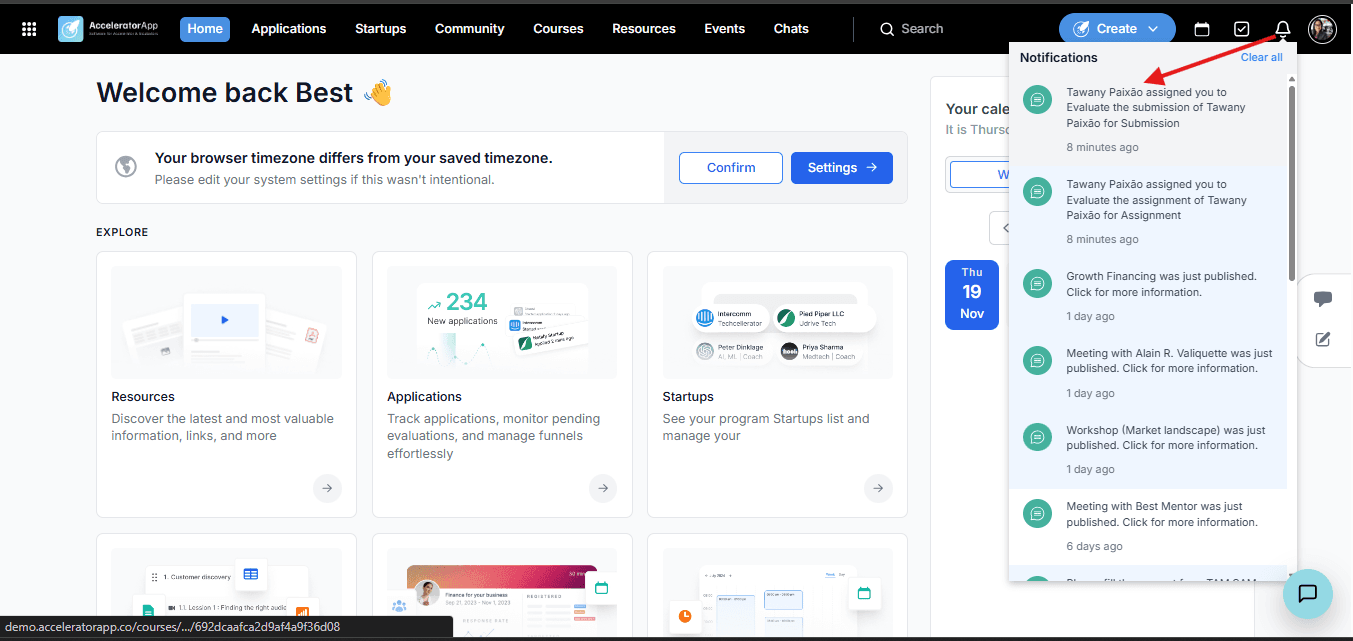
- In-app notifications — click the Notification (bell) icon in the top navigation bar to view alerts for new assignments or submissions awaiting your review.
- Digest emails — if you have digest emails enabled in your account settings and have not yet read the in-app notification, you will also receive an email summary containing a link to the pending evaluation.
Step-by-Step
1. Open the Evaluation Notification
- Click the Notification (bell) icon in the top navigation bar, or open the link from your digest email.
- Locate and click on the notification stating that there is a new assignment or submission ready for you to evaluate.
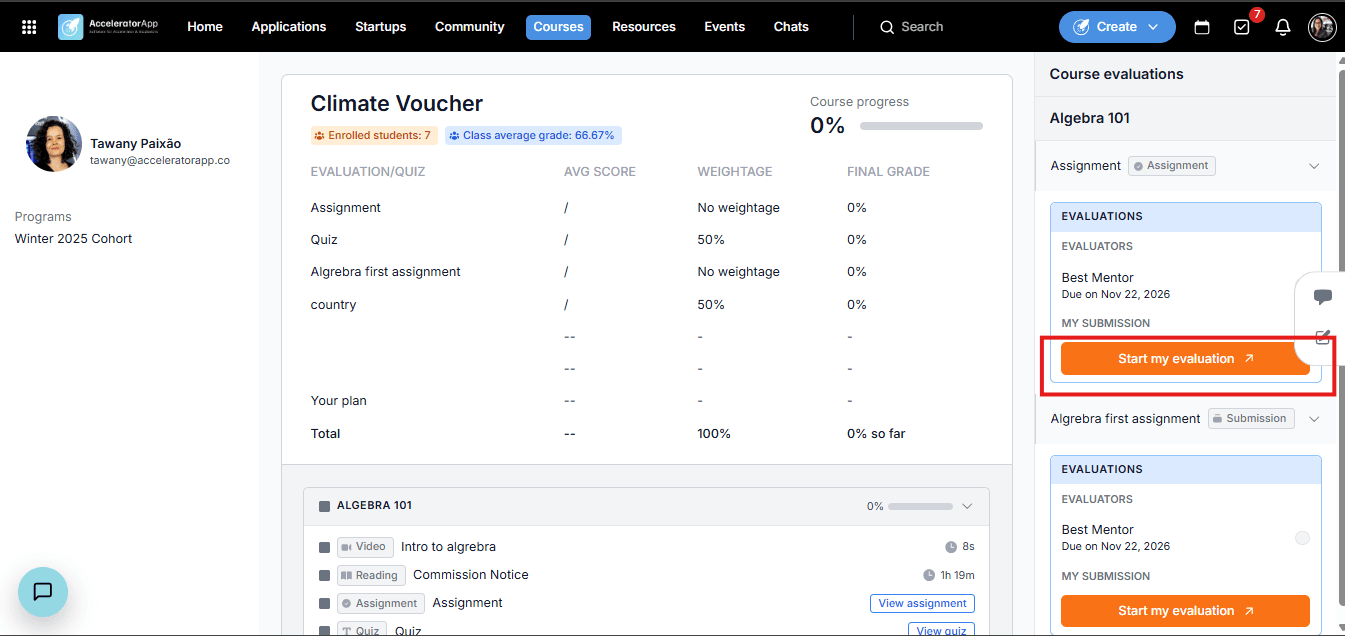
You will be redirected directly to the student's profile page within that specific course.
2. Start and Complete the Evaluation
- On the student's course profile page, locate and click the Start Evaluation button.
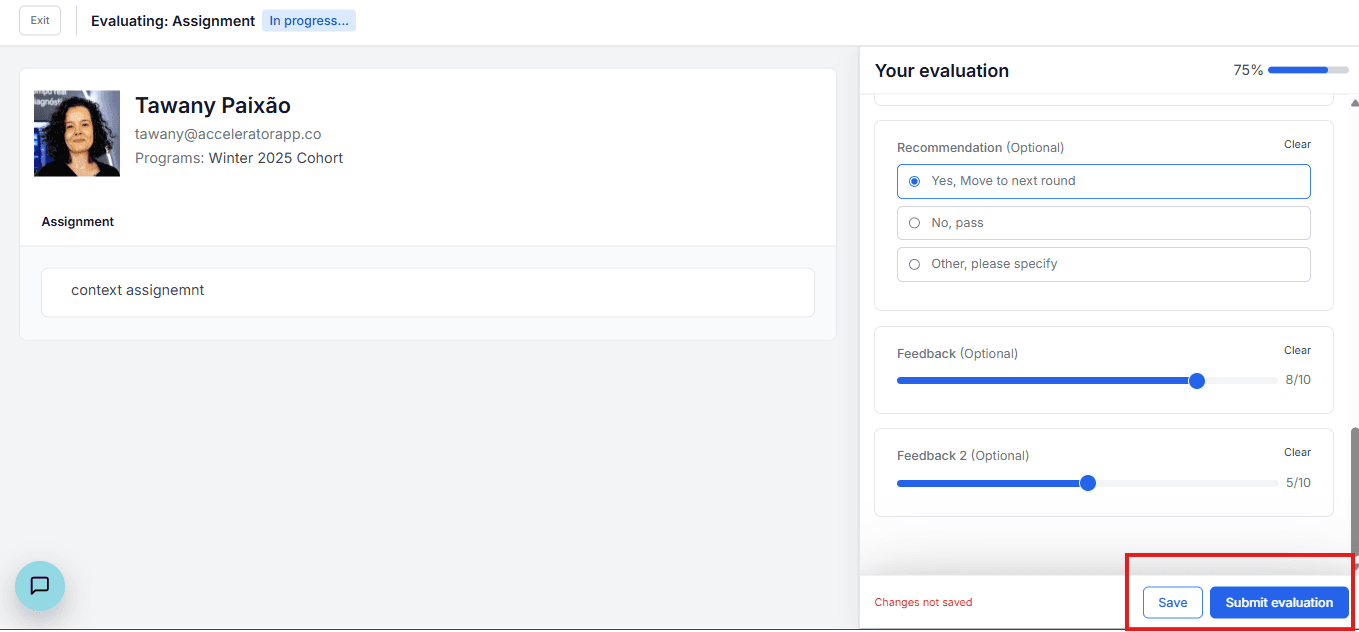
- Review the student's assignment or submission details.
- Answer all the evaluation questions and fill in the required scoring fields.
3. Save and Submit Your Review
- Once you have completed all questions, click Save and Submit to finalize your evaluation.
- A confirmation status will appear indicating that your evaluation has been successfully submitted.
- From this screen, you can click Exit to leave the page, or Modify if you notice something you want to change right away.
4. Revisit and Modify a Submitted Evaluation
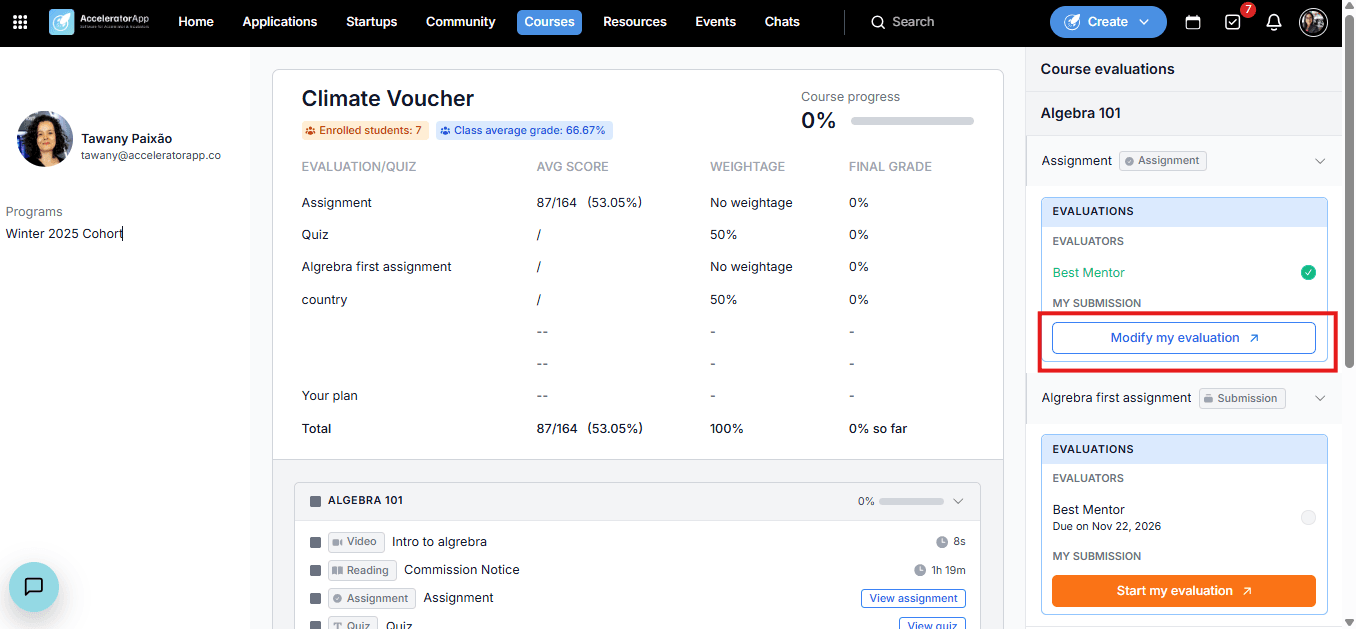
- If you leave the page and later decide to update a submitted evaluation, open your notifications again.
- Click on the original evaluation notification to return to the student's course profile page.
- Instead of Start Evaluation, you will now see a Modify button. Click it to edit and resubmit your answers.
Best Practices
- Enable digest emails. Keep your digest email notifications active in your personal settings so you never miss a student submission, even when you are not logged into the platform.
- Provide constructive feedback. When filling out evaluation forms, use open-text fields to give actionable advice that helps founders and students apply what they learned in the course.
- Keep your notifications accessible. Since notifications are your direct link to student course profiles, avoid clearing your notification history until you are certain you no longer need to modify your submitted reviews.
Additional Resources
Suggested menuName: Evaluate Course Submissions